
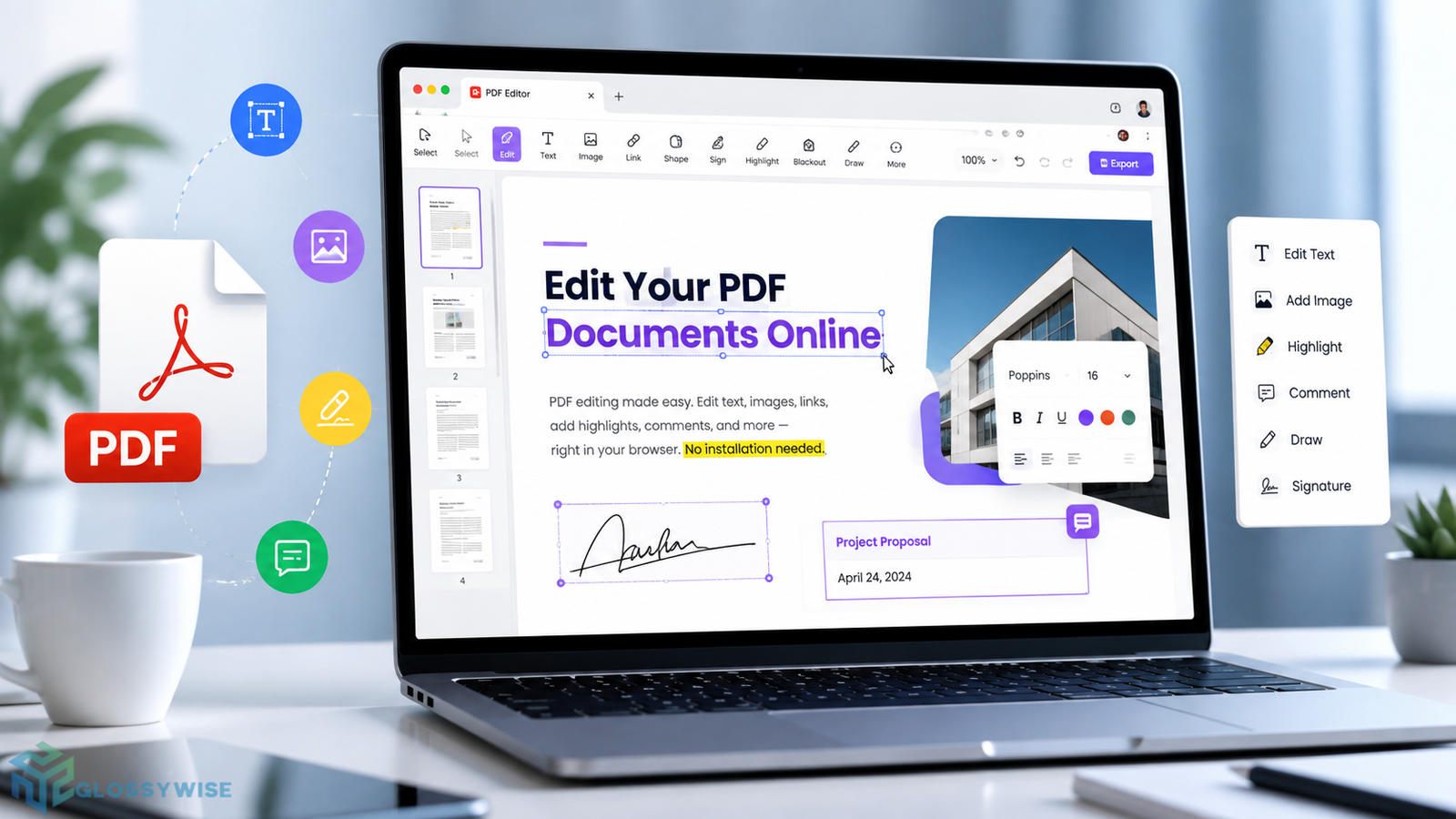
Working with PDF documents has become a normal part of studying, business, freelancing, office work, and everyday online tasks. However, editing a PDF is not always as simple as editing a Word document. You may need to change existing text, add information, insert an image, complete a form, add a signature, highlight important content, or make other small changes without rebuilding the entire document. An online PDF editor can make these tasks much easier because you can work directly from your browser without installing a traditional desktop PDF application. Sejda PDF Editor is one such browser-based solution that provides tools for editing PDF text, adding new content, filling forms, inserting images, creating links, adding annotations, signing documents, and more.
The Sejda PDF Editor page describes the service as a free online PDF editing tool that can be used to edit PDF files, fill and sign forms, add text, images, links and shapes, modify existing PDF text, and annotate documents.
For users who only need occasional PDF editing, a browser-based editor can be especially convenient. You upload the document, make the required changes, apply those changes, and download the finished PDF.
PDF Editor Online
A PDF editor online allows you to modify PDF documents directly through a web browser. This is useful when you do not want to install software or when you are working from a different computer.
With Sejda, you can upload a PDF from your computer and also work with files from supported cloud storage options. The editor also provides an option to begin with a blank document.
The basic workflow is straightforward. Upload your PDF, select the editing feature you need, make your changes, and then apply the changes before downloading the updated document.
This makes an online PDF editor useful for students, teachers, office employees, freelancers, businesses, and anyone who regularly receives documents in PDF format.
Read Also: Spicy Chat: AI Chatbot Features, Conversations & Complete Guide
PDF Editor – Text
One of the most common reasons people search for a PDF editor is to change text. A good PDF editor should allow you to add new text and, where supported, modify existing text without requiring you to recreate the document.
Sejda provides a Text tool that lets users click on a PDF page and enter new text. Existing PDF text can also be selected for editing, with options related to font family, size, style, and text color.
This can be useful when correcting small mistakes, updating information, adding missing details, or completing documents that were created as PDFs.
However, PDF editing can depend on how the original document was created. Scanned PDFs are different from normal text-based PDFs, and Sejda notes that changing existing text inside scans is not supported through the standard editing function.
PDF Editor AI
AI PDF editors are becoming increasingly popular because artificial intelligence can help users understand, summarize, search, extract, and work with documents more efficiently. However, an important distinction should be made between a traditional PDF editing tool and an AI-powered PDF assistant.
Sejda’s online PDF Editor is primarily designed around direct document editing features such as text editing, form filling, links, images, annotations, signatures, shapes, and other PDF operations. It should therefore be viewed mainly as a practical PDF editing platform rather than assuming that every AI-based PDF function is available inside the editor.
If your main goal is to change the actual layout or content of a PDF, traditional editing tools can often be more useful than an AI-only document assistant. On the other hand, AI PDF tools can be helpful when your goal is understanding a long document, asking questions about its content, or generating summaries.
PDF Editor Sejda
Sejda PDF Editor is designed to provide common PDF editing functions in an easy-to-use browser interface. The platform includes tools for adding text, modifying existing text, inserting images, creating links, filling forms, adding shapes, annotating pages, signing PDFs, and covering content with the Whiteout feature.
The service also provides a range of other PDF utilities outside the main editor, including PDF compression, merging, splitting, conversion, OCR, watermarking, page organization, cropping, page numbering, metadata editing, repair, and other document-processing tools.
This makes Sejda more than a simple PDF text editor. It can be useful when you need several different PDF-related operations in one place.
iLovePDF
iLovePDF is another well-known platform for people who need to work with PDF documents online. Users searching for an alternative to Sejda may compare services such as iLovePDF based on available editing, conversion, compression, merging, splitting, and document-management features.
The best option depends on the task you need to complete. Someone who only needs to merge documents may choose a different tool from someone who needs to edit existing PDF text, complete a form, add a signature, and insert images.
When comparing PDF editors, it is useful to look beyond the name of the service and check the specific tools, file-size restrictions, privacy practices, supported formats, and free usage limits.
Free Online PDF Editor
A free online PDF editor can be a practical choice when you only need occasional changes to a document. Instead of purchasing a full desktop application, you can open a browser, upload the PDF, make the required edits, and download the result.
Sejda currently states on its PDF Editor page that its free service supports documents up to 200 pages or 50 MB, with a limit of three tasks per hour. The page also displays additional limits for particular tools and situations, so free users should check the current limits before processing larger or multiple documents.
For simple tasks, these limits may be sufficient. For frequent professional PDF processing, however, users may need to consider a paid plan or desktop alternative.
PDF Editor Download
One of the biggest advantages of an online PDF editor is that you do not necessarily need to download a PDF editing application. Everything can be done through the browser.
However, there are situations where downloading a PDF editor makes more sense. For example, if you work with confidential documents regularly or have unreliable internet access, an offline application can provide greater convenience.
Sejda offers a desktop application as an alternative to its online service. According to the editor page, the desktop version allows users to work with files locally so that the documents do not leave the computer. It also provides access to locally installed fonts.
For occasional editing, the online version may be enough. For regular offline work, the desktop version can be a more suitable choice.
How To Edit PDF Files Online For Free
Editing a PDF online does not have to be complicated. The general process consists of uploading the document, choosing the appropriate tool, making changes, and saving the completed file.
Sejda provides a step-by-step workflow covering text editing, image insertion, forms, hyperlinks, Whiteout, shapes, Find and Replace, annotations, and form fields.
Edit & Sign PDF files online for free. Fill out PDF forms online. Change PDF text. Add text to PDF. Edit existing PDF text. Add image to PDF. Create links in PDF. Edit hyperlinks in PDF. Annotate PDF
The editor combines several common PDF tasks in one interface. You can add new information to a document, change existing text, insert images, create links, complete forms, and mark important sections.
This is particularly helpful when a PDF has already been created, and you only need to make a few modifications instead of converting it back into another file format.
1. Upload your files
The first step is to upload the PDF you want to edit. You can select a file from your computer, and the page also provides options for supported cloud storage services.
Sejda states that uploaded files are transferred through an encrypted connection and are automatically deleted after processing. The page also offers a desktop option for users who prefer to work without uploading files to the online service.
After selecting your document, the PDF opens inside the editor, and the available tools can be used to make changes.
2. Add text to PDF. Type on a PDF
Adding text is one of the simplest PDF editing tasks. Select the Text tool and click on the location where you want to insert your content.
You can use this feature to add missing information, notes, addresses, dates, labels, explanations, or other text that was not included in the original document.
The text can then be positioned on the page so that it fits naturally with the existing layout.
3. Change PDF text
Changing existing PDF text is useful when a document contains an incorrect word, outdated information, or a small piece of content that needs to be updated.
In Sejda, the Text tool can be used to select supported existing text. The editor provides options to modify characteristics such as font size, font family, bold or italic formatting, and text color.
It is important to remember that PDF documents can contain different types of content. Text-based PDFs are easier to edit than scanned pages because a scan is essentially an image rather than ordinary editable text.
4. Add image to PDF
Images can be added directly to a PDF using the Images menu.
This can be useful for adding a logo, photograph, scanned signature, illustration, certificate image, stamp, or other visual material. After inserting an image, you can reposition it and resize it to fit the page.
Sejda’s editor specifically supports adding an image and adjusting its position and dimensions within the document.
5. Fill out PDF forms
PDF forms are commonly used for applications, registrations, business documents, school paperwork, invoices, and other administrative tasks.
If a PDF already contains interactive form fields, you can select the relevant field and enter your information. If it does not contain fields, Sejda provides tools that allow users to add text and use form-related tools such as checkboxes and radio buttons.
This means you do not always need to print a form just to write information on it.
6. Add links to PDF and edit existing hyperlinks
Links are another useful feature for digital documents.
You can create links that point to websites or other locations in the document. Existing hyperlinks can also be edited where supported.
This is particularly useful for reports, guides, ebooks, business documents, educational material, and digital forms where readers need quick access to additional information.
7. Whiteout PDF
The Whiteout feature places a white area over selected content so that it is no longer visible in the normal document view.
This can be useful for covering simple unwanted text or visual elements. However, Sejda specifically warns that Whiteout hides content but does not completely remove the underlying text or images. It should therefore not be treated as a secure redaction method for sensitive information.
For confidential information such as financial data, passwords, identification numbers, or private records, a proper redaction process should be used instead of simply placing a white rectangle over the content.
8. Add shapes
Shapes can help highlight, separate, or draw attention to specific areas of a PDF.
The editor provides shape options including rectangles, ellipses, lines, and arrows. Users can draw shapes over selected areas of the document and adjust their appearance.
This can be helpful for presentations, instructions, diagrams, reports, and documents that need visual emphasis.
9. Find and replace in PDF
Find and Replace is particularly useful for longer documents.
Instead of manually searching through every page for the same word or phrase, you can search for the required text and replace occurrences where supported.
This can save significant time when a document contains repeated names, terms, labels, or other information that needs updating.
10. Add form fields to PDF
A PDF does not always come with fillable fields. In such cases, creating fields can turn a static document into a more interactive form.
Sejda provides several form field types, including text fields, multiline text fields, dropdown lists, checkboxes, and radio choices. You can place these fields on the page and configure details such as the field name and default value.
This feature can be useful for organizations that distribute applications, questionnaires, registration forms, surveys, and other documents that people need to complete digitally.
11. Annotate PDF pages
PDF annotation tools are useful when you want to mark important information without completely changing the original document.
You can highlight text, underline sections, strike through content, or use drawing and freehand annotation features. These tools are especially useful for students, teachers, reviewers, researchers, editors, and office workers.
Annotations can make it easier to review a document and identify important sections before sharing or finalizing it.
12. Save your changes
After completing your edits, the changes need to be applied before you download the finished document.
Sejda instructs users to select the Apply changes option and then download the edited PDF.
It is always a good idea to open the downloaded file and check the pages, formatting, images, links, signatures, and text before sending the document to someone else.
How to Sign a PDF
Adding a signature to a PDF can save time when a document needs to be signed and returned electronically.
Sejda includes a signing feature that allows users to create a signature and place it in the required location of a PDF. The page explains several ways to create a signature, including typing a name, drawing a signature, or uploading a signature image.
Electronic signing is useful for forms, agreements, applications, approvals, and other documents where a signature is required.
Below, we show how to add your signature to a PDF document.
1. Select your PDF document
Start by uploading the PDF that requires a signature.
Once the document opens in the editor, locate the Sign option. This gives you access to the available signature tools.
2. Create a signature
Select Sign and then choose the option to add a new signature.
Sejda provides three main approaches: typing your name, drawing your signature using a mouse or trackpad, or uploading an image of an existing signature.
Type your signature
Typing your name is the easiest method if you do not have an image of your handwritten signature.
You can enter your name and select from available handwriting-style designs. This can create a signature-like appearance without requiring a scanner or separate image file.
Draw your signature
If you prefer a handwritten appearance, you can draw your signature directly on the screen using a mouse, trackpad, or compatible pointer device.
This method provides more control over the shape of your signature and can be useful when you want it to resemble your normal handwritten signature.
3. Add signature to a PDF page
After creating the signature, choose it from the Sign menu and click the location where you want it to appear.
You can resize the signature by adjusting its corners and position it correctly on the signature line or designated area.
One important point is that Sejda states it does not guarantee that a signature created through this tool is legally binding. Therefore, users should check the legal and organizational requirements that apply to their particular document.
How to type on a PDF
Typing directly on a PDF is useful when you have a document that was not designed as a fillable form but still needs additional information.
1. Select your PDF document
Upload the PDF into the online editor.
Once it loads, select the Text tool from the toolbar.
2. Type text on a PDF
Click anywhere on the page where you want the new text to appear.
You can then type your information and position it according to the document’s layout. This can be useful for adding names, addresses, notes, dates, explanations, or other missing details.
3. Save your changes
When you are finished, apply the changes and download the updated PDF.
Before sharing the file, review the completed document to make sure the text is positioned correctly and no important information has been accidentally covered.
How to edit PDF on Mac
Mac users have several ways to edit PDF files, including browser-based tools and dedicated desktop applications.
1. Edit in your browser with our online PDF editor
The simplest option is to open the online PDF editor in a browser such as Safari or another supported browser.
You can upload your document and perform the required editing tasks without installing a separate application.
This method is convenient when you are using a shared computer, working temporarily on a Mac, or only need to edit a PDF occasionally.
2. Edit with our offline Mac PDF editor app
For users who prefer offline editing, Sejda also provides a desktop application for Mac.
The desktop option is useful when you regularly handle documents and prefer to keep files stored locally. Sejda states that files used through the desktop application do not leave your computer.
It can also be useful when you need access to locally installed fonts that are not available in the online editor.
Sejda PDF Editor Features
Sejda provides a broad selection of editing features beyond basic text insertion.
The editor includes text editing, Find & Replace, hyperlinks, form tools, image insertion, signatures, Whiteout, annotations, and shapes.
For forms, users can work with text fields, multiline fields, dropdowns, radio buttons, checkboxes, and signature boxes. The platform also provides tools for managing form fields and changing their order.
The annotation section includes highlighting, underlining, strikeout, freehand highlighting, and drawing tools.
For visual editing, users can insert images and use shapes such as rectangles, ellipses, lines, and arrows.
Is Sejda PDF Editor Free?
Sejda offers free online PDF editing, but free usage is subject to limits.
The current PDF Editor page states that the free service supports documents up to 200 pages or 50 MB and allows three tasks per hour. Other individual tools may have their own restrictions.
For occasional PDF work, these limits can be enough. If you process many documents every day, you may encounter the free usage limits more quickly.
Therefore, whether the free version is suitable depends on how frequently you edit PDFs and how large your documents are.
Is Sejda PDF Editor Safe?
Privacy is an important consideration whenever you upload a document to an online service.
Sejda states on its PDF Editor page that files are uploaded securely over an encrypted connection and are automatically deleted after processing. The page currently states that files stay private and are automatically deleted after two hours.
However, users should still consider the sensitivity of their documents before uploading them to any online service. For highly confidential files, working offline with a trusted desktop application may be preferable.
Sejda PDF Editor Limitations
Although Sejda provides many useful tools, it is not designed to handle every possible PDF structure perfectly.
For example, the editor indicates that editing existing text inside scanned PDFs is not supported in the standard editing workflow. It also warns about unsupported features, certain complex scripts, missing font characters, and some advanced PDF elements.
The page also notes that right-to-left and complex-script alphabets may not be fully supported. Users working with languages such as Arabic or other complex writing systems should therefore test their document before relying on the editor for an important project.
Another important limitation concerns Whiteout. It hides content visually but does not securely remove the underlying data, so it should not be used for sensitive redaction.
Sejda PDF Editor vs Other PDF Editors
There are many PDF tools available today, including online services, desktop applications, and AI-powered document platforms.
Some users may compare Sejda with iLovePDF because both provide a variety of PDF-related tools. Others may search for Canva PDF Editor because Canva is popular for document design and visual content.
The right choice depends on your purpose. If you need direct PDF editing and document-processing tools, a dedicated PDF editor can be more practical. If your priority is designing visually rich documents from scratch, a design platform may be more appropriate.
AI PDF tools are useful for different reasons, especially when users want to summarize documents, extract information, or ask questions about their files.
Instead of choosing a tool only because it is popular, consider the exact task you need to complete.
Canva PDF Editor
Canva is widely known as a visual design platform, and it can also be useful for working with PDF-based content.
A Canva PDF workflow can be attractive when the main goal is to create or redesign visually appealing documents. For example, users may prefer a design-focused platform for brochures, presentations, posters, resumes, social media documents, or marketing materials.
A dedicated PDF editor such as Sejda is generally more focused on editing an existing PDF structure, adding text, inserting images, working with forms, annotations, signatures, links, and other document operations.
Therefore, Canva and Sejda can serve different purposes even though both may appear in searches for PDF editing.
What Can You Do With an Online PDF Editor?
An online PDF editor can be useful for a wide range of everyday tasks.
Students can use it to add notes, complete application forms, highlight study material, and sign documents. Businesses can use PDF editors to update forms, add company information, create fillable documents, and review contracts.
Freelancers can edit client documents, insert images, add signatures, and prepare final files without installing large software packages.
You can also use an online editor to add hyperlinks, modify supported text, insert shapes, annotate pages, complete forms, and prepare documents for digital sharing.
Can You Edit a Scanned PDF?
This depends on the type of editing you need.
A scanned PDF is generally made from page images rather than normal selectable text. Because of this, directly changing existing words inside the scan is different from editing text in a digitally generated PDF.
Sejda specifically indicates that changing existing text inside scans is not supported through the standard PDF editor, although other operations such as adding text and images can still be performed.
If you need to convert scanned content into editable text, an OCR tool may be more appropriate. Sejda also provides a separate OCR tool within its wider collection of PDF utilities.
Can You Edit PDF Text for Free?
Yes, an online PDF editor can allow you to make supported text changes without paying for traditional desktop software.
Sejda provides a free PDF editing service, although usage limits apply. The current page lists limits related to file size, pages, tasks per hour, and other operations.
For a small document or occasional correction, the free service can be convenient. For large-scale or frequent document processing, checking the current paid plans and limitations is recommended.
Frequently Asked Questions
Is Sejda PDF Editor free?
Sejda provides a free online PDF editing service with usage restrictions. Its current PDF Editor page states that free documents can be up to 200 pages or 50 MB, with three tasks per hour. Certain tools have additional limits.
Can I edit existing text in a PDF?
Yes, supported text-based PDF content can be edited using the Text tool. You can also add new text and adjust formatting such as font size, family, style, and color. Scanned documents may require a different workflow.
Can I sign a PDF online with Sejda?
Yes. Sejda provides a Sign feature that lets you create a signature by typing your name, drawing it, or uploading an image and then placing the signature on the PDF.
Can I add an image to a PDF?
Yes. You can insert an image into a PDF, move it around the page, and resize it to fit the required area.
Can I fill out PDF forms online?
Yes. Existing interactive fields can be filled, and Sejda also provides tools for adding form fields such as text boxes, checkboxes, dropdowns, radio buttons, and signature boxes.
Is Sejda better than iLovePDF?
There is no single answer for everyone. Both services provide PDF-related tools, but the better option depends on the exact task, interface preference, limits, privacy requirements, and features you need.
Can I edit PDF files on Mac?
Yes. You can use the online PDF editor through a browser on Mac, or use Sejda Desktop for offline PDF editing.
Can I edit a PDF without downloading software?
Yes. An online PDF editor allows you to work directly through a browser. You upload the document, make the required changes, apply them, and download the completed PDF.
Is Whiteout the same as permanently removing sensitive information?
No. Whiteout only covers the content visually. Sejda warns that the underlying text or images are not completely removed, so Whiteout should not be used as a secure redaction method for sensitive data.
Conclusion
An online PDF editor can save considerable time when you need to make quick changes to an existing document. Instead of converting the PDF into another format or installing complicated software, you can work directly in your browser and download the finished file when the editing process is complete.
Sejda PDF Editor provides a wide selection of useful tools, including text editing, adding new text, inserting images, filling forms, creating links, adding signatures, annotations, shapes, and Find & Replace. It also offers a separate collection of PDF utilities for tasks such as merging, splitting, compressing, converting, OCR, watermarking, and organizing documents.
For occasional users, the free online PDF editor can be a convenient solution, especially for smaller documents and simple editing jobs. Users working with confidential documents or requiring offline access may prefer the desktop version.
Overall, Sejda is worth considering when you need a straightforward way to edit, sign, annotate, and manage PDF documents without relying entirely on traditional PDF software.
