
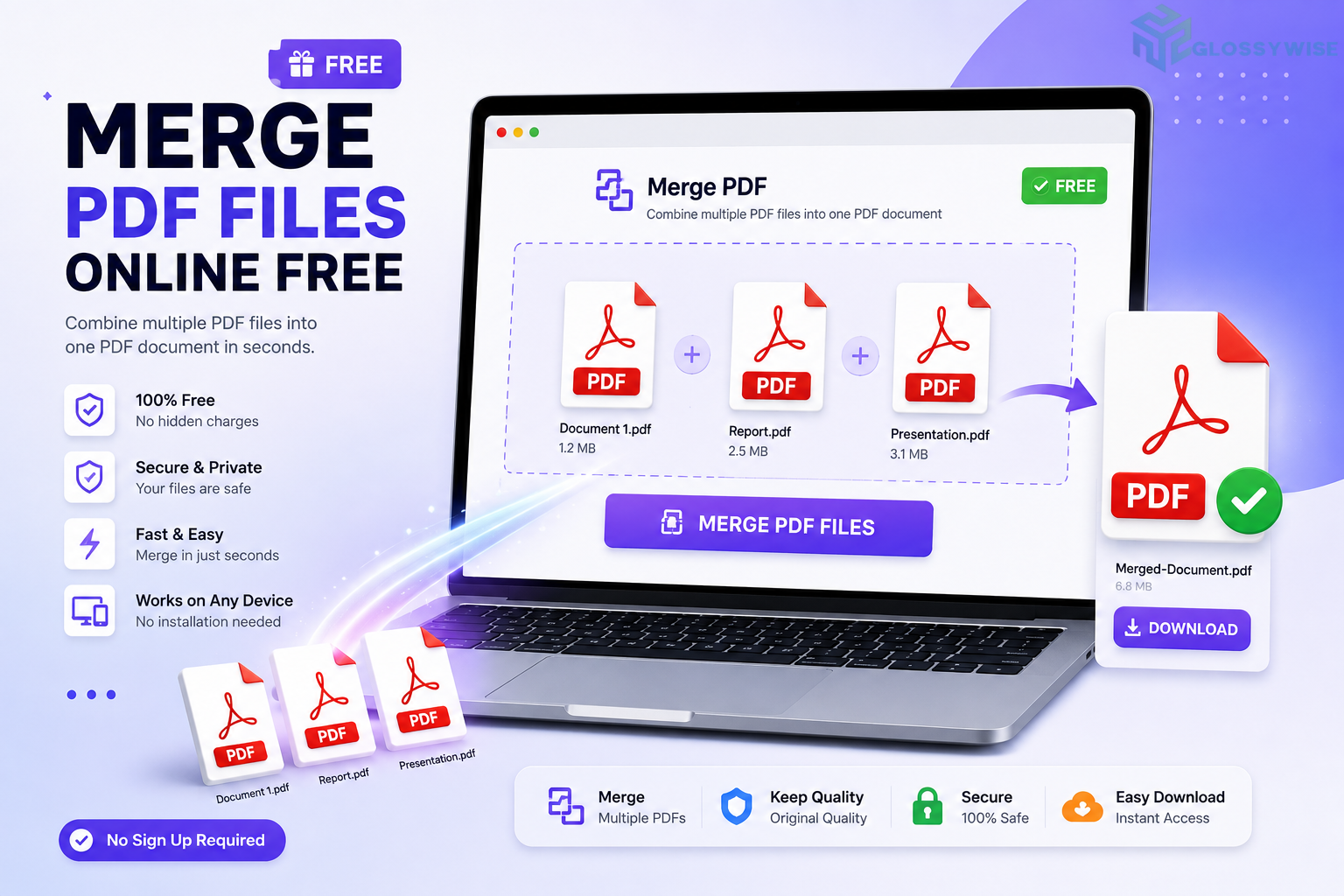
Managing multiple PDF documents can become frustrating when important information is spread across different files. You may have separate reports, scanned pages, invoices, assignments, application documents, certificates, or project files that need to be collected into one organized PDF. A PDF merger solves this problem by allowing multiple documents to be combined into a single file. Instead of opening several PDFs individually, you can merge them into one document and keep everything together. Sejda’s Merge PDF tool is designed for this purpose. It allows users to combine multiple PDF files and images into one document, reorder files before merging, select individual pages, create bookmarks, add a table of contents, normalize page sizes, and configure several other options. The online tool can be useful for students, businesses, freelancers, teachers, researchers, and anyone who frequently works with digital documents.
Merge PDF Files Online Free
Merging PDF files online is one of the easiest ways to organize multiple documents without installing specialized software. You can upload your files through a browser, arrange them in the desired order, apply optional settings, and download the final PDF. Sejda supports PDF files as well as image files such as JPG and PNG. When an image is added alongside PDF documents, the images are converted to PDF pages and included in the resulting file. This makes the tool useful when your project contains both regular PDFs and photographs, screenshots, scanned pages, or other images. The service also supports importing files from Dropbox, Google Drive, and OneDrive, giving users multiple ways to access documents.
Don’t Miss: Online PDF Editor – Edit PDF Files Online for Free
Merge PDF Free
A free PDF merger can be enough for everyday document tasks. If you only need to combine a few relatively small files occasionally, there may be no reason to install a large desktop application.
The current Sejda Merge PDF page lists a free service for documents up to 50 pages or 50 MB, with three tasks per hour.
These limits are important to remember if you regularly work with large documents or need to merge many files during a short period.
For occasional use, however, an online PDF merge tool can be a convenient solution because the entire process can be completed through a web browser.
Merge PDF Files Online iLovePDF
iLovePDF is another popular name that users may encounter when searching for online PDF merging tools. Both dedicated PDF services can be useful for combining multiple documents into one file.
When comparing PDF merger tools, it is better to focus on the features you actually need instead of choosing a service based only on popularity.
For example, users may want to check whether the tool supports file reordering, image input, cloud storage, page selection, bookmarks, table of contents generation, form fields, page-size normalization, and free usage limits.
Sejda’s merger provides several of these advanced options directly in the merge workflow, which can make it useful for more than simply joining two PDF files.
PDF Merge Free Download
If you frequently merge PDF documents, you may prefer a downloadable application instead of an online service.
A desktop PDF merger can be useful when you need to work offline, have unreliable internet access, or prefer keeping documents on your own computer.
Sejda also provides a desktop version. The Merge PDF page explains that the desktop option offers the same type of workflow while keeping files on the user’s computer rather than uploading them to the online service.
For occasional merging, the online version can be faster because there is no installation process. For regular offline work, a PDF merge application may be more convenient.
Merge JPG to PDF
PDF merging is not limited to PDF files. You can also combine images with PDF documents.
For example, imagine you have a PDF application, a JPG photograph, a PNG signature page, and another PDF containing supporting documents. Instead of converting every image manually, the merge tool can accept supported image files and convert them into PDF pages during the process.
This makes the workflow especially useful for students and office workers who often have a mixture of scanned images and PDF documents.
You can arrange the image pages alongside the PDF files and create one final document.
Merge Files Free
Sometimes you do not need a specialized PDF merger because your goal is simply to bring several related files together.
However, PDFs are usually the preferred format when the final document needs to preserve a consistent page layout. Combining separate files into one PDF can also make sharing easier because the recipient only needs to open one document.
A merged PDF is useful for portfolios, project submissions, business reports, application packages, contracts, invoices, presentations, research documents, and educational material.
Instead of sending ten separate attachments, you can organize the documents into one logical file.
Adobe Merge PDF
Adobe is another major option for PDF management, and many users search for Adobe Merge PDF when they want to combine multiple documents.
Adobe’s PDF tools can be useful for professional users, particularly those already working within the Adobe ecosystem. However, online PDF merging tools can be attractive when you only need a quick document operation without opening a full desktop application.
The most suitable option depends on your workflow, required features, subscription needs, document size, privacy requirements, and whether you prefer online or offline processing.
For a straightforward browser-based merge, a dedicated online tool can be more convenient for many users.
Merge 2 Pages Into 1 Page PDF Online Free
Merging two pages into one page is slightly different from merging two PDF files.
When people search for “merge 2 pages into 1 page PDF,” they may mean placing two existing PDF pages on a single sheet, such as two A5 pages on one A4 sheet. This is generally a layout or N-up printing task rather than simply combining PDF files sequentially.
A standard PDF merge places pages one after another in the resulting document. If your goal is to physically place multiple pages on one sheet, a tool designed for N-up PDF layouts may be more appropriate.
This distinction is important because “merge PDF” can mean either combining documents into one file or arranging multiple pages onto a single sheet.
How to Merge PDF Files
Combining multiple PDF documents can be completed in a few simple steps. The process starts by uploading the files, arranging their order, selecting any optional settings, and finally downloading the completed PDF.
Below is the general workflow.
1. Upload your files
Start by selecting the PDF files you want to combine.
You can use the Upload option to choose files from your computer, or drag and drop files directly onto the page. Sejda also supports adding documents from Dropbox, Google Drive, and OneDrive.
One useful feature is support for image files. JPG, PNG, and other supported images can be added alongside PDFs and are automatically converted into PDF pages during the merge process.
This means you do not necessarily have to convert every image separately before starting.
Files stay private
The current page states that uploaded files stay private and are automatically deleted after two hours. It also explains that files are safely uploaded over an encrypted connection.
Users working with highly sensitive information should still consider whether online processing is appropriate for their particular documents.
If you prefer not to upload files at all, the desktop version provides an offline alternative.
2. Reorder your files
The order of your documents matters because the final PDF follows the sequence you create.
After uploading your files, you can drag and drop them to change their position. The tool also provides sorting options based on filenames, including A-Z and Z-A ordering.
For example, if you are combining a cover page, introduction, chapters, appendices, and supporting documents, you can arrange everything in the correct sequence before creating the final file.
Taking a few seconds to verify the order can prevent unnecessary editing later.
3. Double-sided printing
Double-sided printing can cause problems when individual documents contain different numbers of pages.
The Merge PDF tool provides a Double Sided Printing option designed to help maintain proper page positioning when the final document is printed on both sides.
The page explains that files with an even number of pages can affect how subsequent files line up during double-sided printing. A blank page can be inserted where necessary to maintain the correct layout.
This is especially useful for booklets, reports, manuals, and documents intended for physical printing.
4. Make all pages the same size
Different PDF files may use different page dimensions.
For example, one document might use A4 while another uses Letter size. You may also have portrait pages mixed with landscape pages.
The tool provides an option to normalize all pages to the same size. This can produce a more consistent final document and make printing easier.
You can find this option under More Options before completing the merge.
5. First document is a cover or title page
Some documents begin with a cover or title page that should be treated differently from the rest of the content.
The Merge PDF tool allows you to identify the first document as a cover or title page. This can affect how certain options, such as double-sided printing and the table of contents, are applied.
This is useful for reports, ebooks, academic projects, business documents, and manuals where the first page is designed as a separate cover.
6. Generate bookmarks or outline
Bookmarks can make a long PDF much easier to navigate.
When multiple documents are merged, you may want the original document structure to remain accessible. The tool provides several bookmark options, including keeping existing bookmarks, discarding them, creating a new bookmark for each file, or keeping existing bookmarks underneath a new document-level bookmark.
For large reports or collections of documents, bookmarks can significantly improve the reading experience.
Instead of scrolling through dozens or hundreds of pages, readers can use the PDF navigation panel to jump directly to a section.
When multiple files are combined, it can sometimes become difficult to identify which original document a particular page came from.
The filename-to-footer option solves this problem by adding the original filename to the footer of each page.
This can be useful when combining reports from different departments, research papers, invoices, applications, or business records.
After merging, the footer provides a simple reference to the source file, making document management easier.
8. Generate Table of Contents
A table of contents can make a long merged PDF much easier to navigate.
The tool allows users to create a first-page table of contents containing clickable links that lead to the starting page of each merged file. You can base the entries on filenames or document titles.
This is particularly helpful when merging chapters, reports, manuals, research papers, or multiple sections of a large project.
A clickable contents page gives the final PDF a more professional and organized structure.
9. Flatten Form Fields
PDF forms can contain interactive fields that remain editable after merging.
If you want the completed values to remain visible while removing the editable form-field behavior, you can use the Flatten option.
The page also provides options for merging form fields or discarding them completely. There is an option to rename existing fields when necessary to avoid duplicate field names.
Flattening can be useful when a completed form needs to be shared as a final document rather than returned as an editable form.
10. Add individual pages from a file
You do not always need to merge an entire document.
The Add Pages option allows you to select specific pages from a file and include only those pages in the final merged PDF.
This is useful when a large document contains only a few pages that are relevant to your project.
You can also work with the selected pages before completing the merge. Pages can be deleted, reordered, or duplicated as needed.
This gives you more control than simply combining complete files from beginning to end.
11. Reordering or alternating pages
Sometimes you need pages from different documents to alternate rather than appear sequentially.
For example, you might have two sets of scanned pages that need to be combined in alternating order. A standard merge would place the first document followed by the second, while an alternating workflow can mix the pages between documents.
Sejda provides a separate Alternate & Mix PDF tool for this type of operation.
This can be useful for scanned documents, duplex workflows, comparison files, and other specialized PDF tasks.
12. Download results
Once all files and options are configured, the final step is to generate the merged PDF.
Select the Merge PDF Files option and wait for the processing to complete. You can then click Download to save the resulting PDF to your computer.
The page also provides an option to save the completed document to Dropbox.
Before sharing the final document, open it and check the page order, formatting, bookmarks, links, forms, and other important elements.
Can You Merge PDF Files Online Without Software?
Yes. Online PDF merger tools allow you to combine documents directly in a web browser.
This is particularly convenient when you are using a computer where you cannot install software or when you only need to merge files occasionally.
The basic process is to upload your documents, organize them, select the required options, merge them, and download the result.
For regular offline work, however, a desktop PDF merger may provide better convenience and control.
Can You Merge JPG and PDF Files?
Yes. Supported image files can be added alongside PDF documents.
The image files are converted into PDF pages and then included in the merged document. This means you can combine photographs, screenshots, scanned images, and PDF files into one final PDF.
This is useful for applications, portfolios, school projects, business records, and document packages where not every source file is already in PDF format.
Can You Merge Only Selected PDF Pages?
Yes. You do not have to include every page from every uploaded document.
The Add Pages feature allows you to select specific pages from a document and include them in the merge. You can also delete, reorder, or duplicate pages before producing the final file.
This can save time when working with long documents that contain only a few relevant pages.
What Is the Free Limit for PDF Merging?
The current Merge PDF page states that the free service supports documents up to 50 pages or 50 MB and allows three tasks per hour. The page also displays additional restrictions for certain situations, so users processing large or numerous files should check the current limits before starting.
These restrictions are generally more suitable for occasional personal tasks than for heavy document-processing workloads.
Is Online PDF Merging Safe?
Online PDF merging can be convenient, but privacy should always be considered.
The current page states that files are uploaded through an encrypted connection, remain private, and are automatically deleted after two hours.
For normal documents, this may provide a convenient workflow. For extremely confidential files, organizations may prefer offline processing to maintain tighter control over the documents.
What Happens If My PDF Has a Password?
Some PDF files are protected with passwords or restricted permissions.
The Merge PDF interface can request a password when a document is protected. If a PDF has an owner password that restricts actions such as editing, organizing pages, filling forms, or printing, the appropriate password may be required to enable those permissions.
If you do not have the necessary password, you may not be able to perform certain operations on the protected document.
Are Scanned PDFs Supported?
There is an important distinction between merging scanned PDFs and editing their contents.
The current page indicates that scanned documents are not supported for certain editing and conversion operations. Scanned PDFs are essentially images of text rather than documents containing normal selectable text.
However, the broader merge workflow can still be used for combining PDF files. If you need to extract or recognize text from scans, OCR is generally the more appropriate type of tool.
Why Should You Merge PDF Files?
Combining documents can make file management much easier.
Instead of maintaining several separate attachments, you can create one organized document that contains all relevant information.
A merged PDF can be useful for:
- Academic assignments
- Business reports
- Job applications
- Resumes and portfolios
- Contracts and agreements
- Invoices
- Research papers
- Project documentation
- Training manuals
- Presentation material
- Scanned records
- Application documents
A single well-organized PDF is often easier to upload, email, print, archive, and share.
Tips for Creating a Better Merged PDF
Before merging your documents, rename files clearly so you can identify their order quickly.
Check whether the PDFs have different page sizes, because mixed dimensions can affect the appearance of the final document.
If the final PDF will be printed, pay attention to double-sided printing settings.
For long documents, consider adding bookmarks or a table of contents so readers can navigate between sections quickly.
Finally, always review the final PDF before sending it to another person. Check the order, page orientation, missing pages, formatting, forms, and links.
Frequently Asked Questions
How do I merge PDF files online for free?
Upload your PDF files into an online merge tool, arrange them in the required order, choose any additional options, and select the merge button. Once processing is complete, download the combined PDF.
Can I merge more than two PDF files?
Yes. A PDF merger can combine multiple documents into a single PDF, subject to the service’s current file, page, size, and usage restrictions.
Can I merge images with PDF files?
Yes. Supported JPG, PNG, and other image formats can be added alongside PDF documents. The images are converted into PDF pages before being included in the final document.
Can I change the order of PDF files?
Yes. Files can be rearranged before merging by dragging them into the desired position. Sorting options can also help organize files alphabetically.
Can I merge selected pages instead of complete PDFs?
Yes. You can use the Add Pages feature to choose specific pages from a document rather than including the entire file.
Can I create a table of contents in a merged PDF?
Yes. The tool can generate a table of contents using filenames or document titles, with clickable links leading to the beginning of each merged file.
Can I add bookmarks when merging PDFs?
Yes. Several bookmark settings are available, including keeping existing bookmarks, removing them, or creating new entries for individual documents.
Can I make all merged PDF pages the same size?
Yes. The Make All Pages the Same Size option can normalize pages with different dimensions, such as A4 and Letter documents.
Can I merge PDF files offline?
Yes. A desktop PDF application can be used when you prefer not to upload documents to an online service. The desktop option keeps files on your computer.
Is merging PDF files free?
Online PDF merging can be free when using a service’s free tier. Current limits vary by provider. The Sejda Merge PDF page currently lists a free limit of up to 50 pages or 50 MB and three tasks per hour.
Conclusion
Merging PDF files is a simple way to turn multiple separate documents into one organized file. Whether you are combining assignments, business reports, application documents, scanned pages, invoices, or project material, a PDF merger can save time and make file management easier. An online PDF merger is especially convenient because you can complete the process directly in your browser. You can upload multiple PDFs, add images, change the file order, select individual pages, normalize page sizes, create bookmarks, generate a table of contents, manage form fields, and download the finished document. For occasional users, the free service can be enough for smaller documents. Users who frequently handle confidential or large files may prefer an offline desktop solution. The key is to choose the workflow that matches your needs and always review the final merged PDF before sharing or printing it.
